
 For macOS
Your download is almost ready
MyPixelGuard for macOS · macOS 13 Ventura or later · Apple Silicon and Intel
- Free · no account
- Works offline
- Nothing is uploaded
- Checksum to verify
- VirusTotal: 0 / 59 flagged
Install on your Mac
Follow these steps once. Pictures marked as illustrations show what you will see.
- 1
Open the downloaded file
Open your Downloads folder and double-click MyPixelGuard-mac.dmg.
MyPixelGuard-mac.dmgDouble-click to openIllustration - 2
Drag it into Applications
In the window that opens, drag the MyPixelGuard icon onto the Applications folder. Then close the window.
Drag the MyPixelGuard icon onto the Applications folderMyPixelGuardApplicationsIllustration - 3
Open it — and expect one warning
Open MyPixelGuard from Applications (or Launchpad). macOS shows the message on the right the first time.
This is normal for a new publisher; it does not mean the app is unsafe. Click “Done” — not “Move to Trash”.
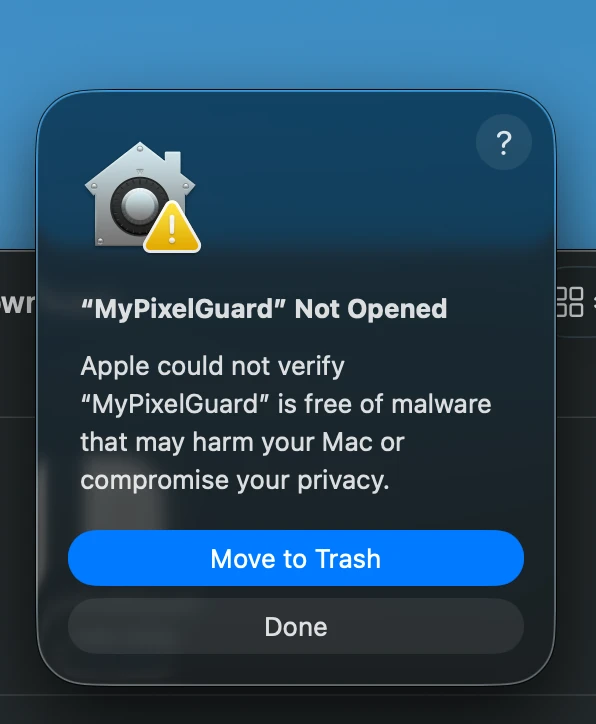 ▲ Click “Done”
Real screenshot - 4
Allow it in System Settings
Open System Settings → Privacy & Security, scroll down to the Security section and click Open Anyway next to “MyPixelGuard”. Enter your Mac password or use Touch ID.
SecurityAllow applications fromApp Store & Known Developers“MyPixelGuard” was blocked to protect your Mac.
Open AnywayIllustration - 5
You’re ready
MyPixelGuard opens. Drop in a photo and see what it was hiding.
You only do steps 3–4 once. From now on it opens like any other app.
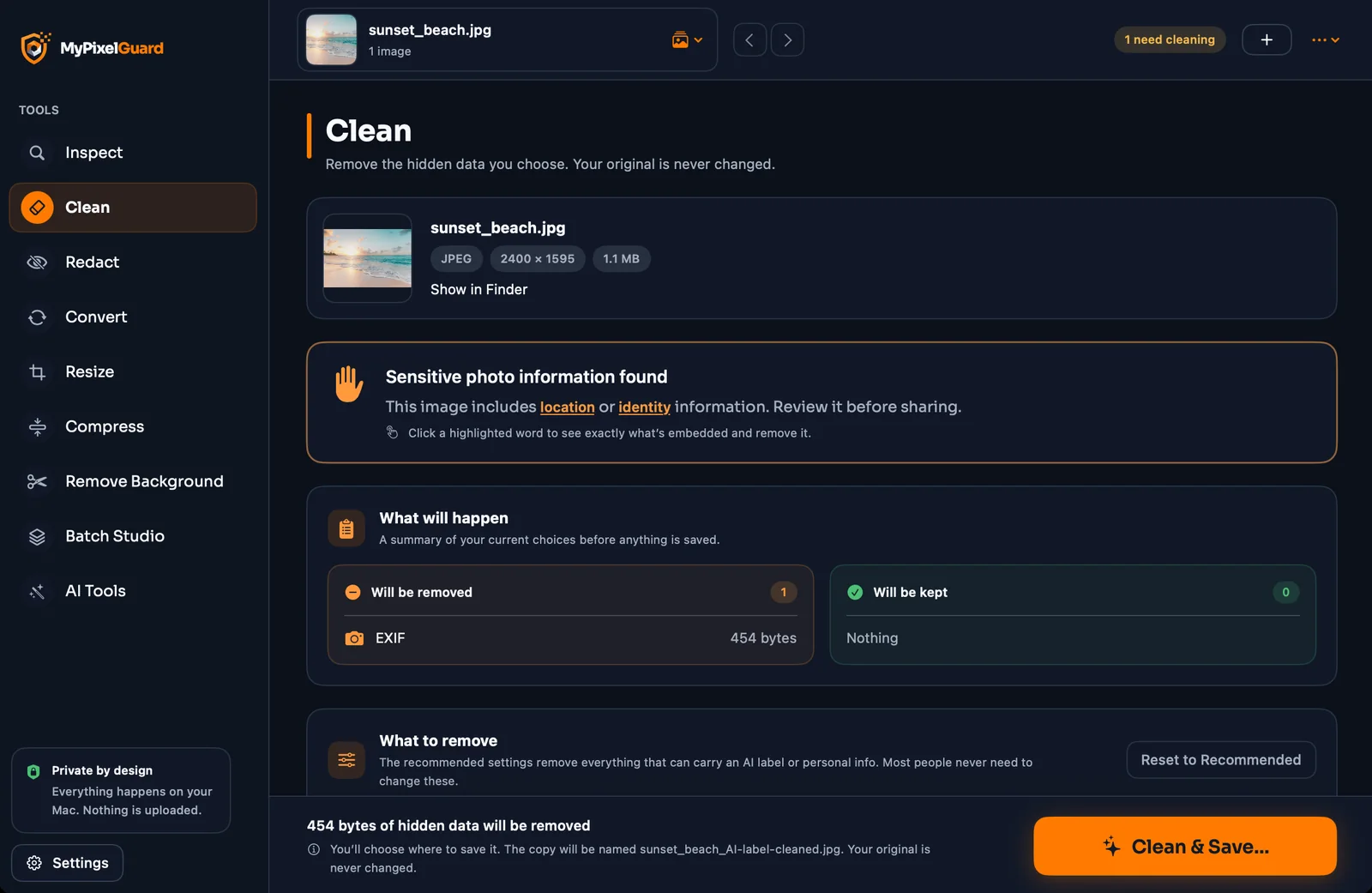
Real screenshot
Prefer Terminal? One command instead of steps 3–4
After dragging the app into Applications, run this once, then open the app normally:
xattr -dr com.apple.quarantine /Applications/MyPixelGuard.appWhy do I see a warning?
Apple shows this for every app from a publisher it hasn’t seen before, until the publisher joins its paid developer programme. MyPixelGuard is from Agentiq BD, an independent publisher. The message means “new”, not “dangerous”.
Check it yourself
This is the file’s SHA-256 fingerprint. After downloading, run the command below; if the result is identical, the file is exactly what we published.
Available once the file is publishedshasum -a 256 ~/Downloads/MyPixelGuard-mac.dmg- Does it need the internet?No. The app has no network code and works offline. Your photos never leave your computer.
- Is it free?Yes. No account and no sign-up.
- Can I remove it later?Yes — drag MyPixelGuard from Applications to the Trash.